
Appearance
Reset an owner's two-step
In short
When an owner loses their authenticator, check it's really them (a video call with their PCN card, or in person with photo ID), confirm the checks and a reason, and send it to a colleague to approve. Nothing is reset until they do.
Who: the onboarding team and support. Only for an owner or superintendent pharmacist.
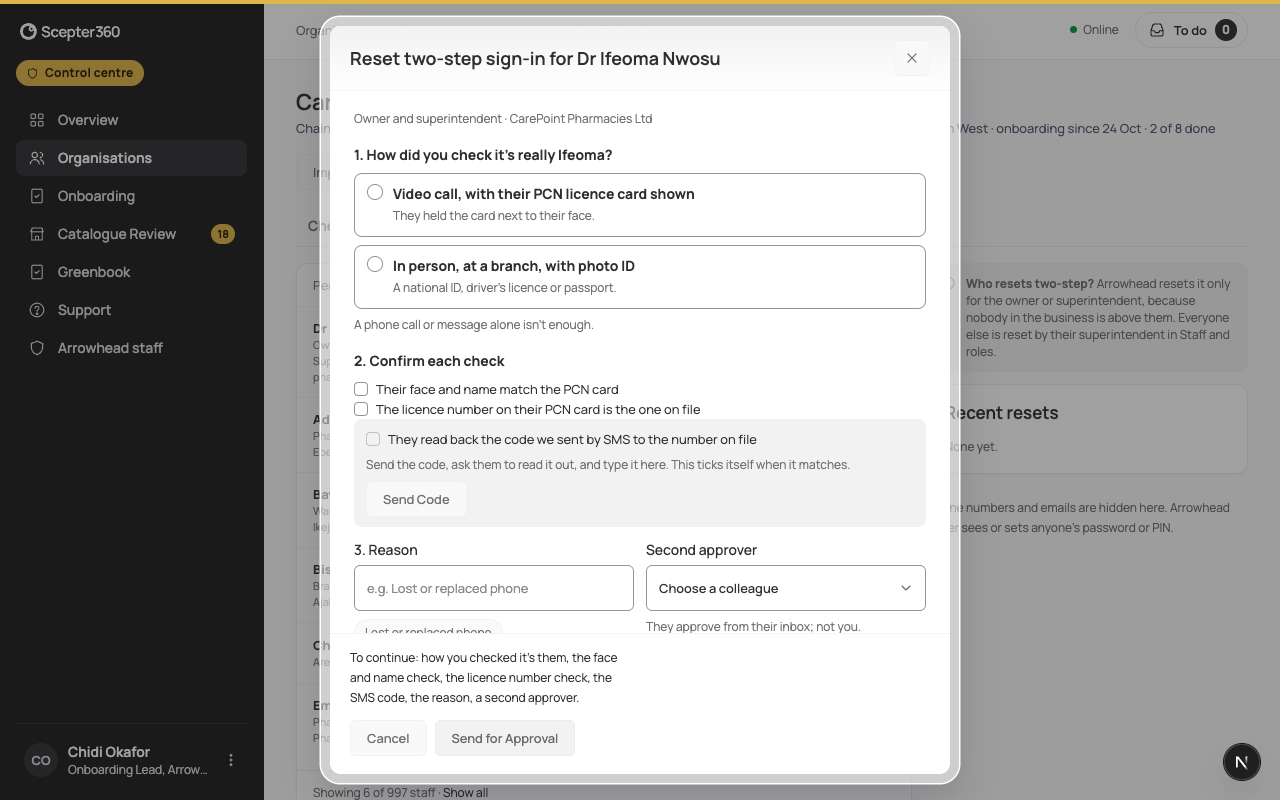
- On the business's Staff sign-in, choose Reset two-step… next to them.
- How did you check it’s really them? Video call, with their PCN licence card shown, or In person, at a branch, with photo ID. A video call is usually quicker; choose in person if they can't show their PCN card. A phone call or message alone isn't enough.
- Confirm each check:
- Their face and name match the card or ID.
- The licence number on their card is the one on file.
- Send Code texts a code to the number on file. Type the Code they read out and choose Check Code. It ticks itself once it matches.
- Reason: for example "Lost or replaced phone".
- Second approver: choose a colleague. Not you.
- Choose Send for Approval.
Until it's approved their current code still works. Once it is, they set two-step up again at their next sign-in.
No phone on file
If the owner has no phone number on file (a No phone pill), there's no SMS check: check them in person with photo ID instead. The rest is the same.
If something goes wrong
- "That code isn’t right. Ask them to read it again."
- "That code has expired. Send a new one."
- "A reset for … is already waiting for approval."
- "Arrowhead resets two-step only for the owner or superintendent. …"