
Appearance
Regions, areas and managers
In short
Company structure is how your business is organised: every branch in an area, every area in a region. Each area has an area manager, each region a regional manager, and they see the branches below them. Head office adds, moves and closes; managers can look.
Who: head office (the owner, or anyone allowed to manage the structure). Area and regional managers see their part, read-only. Changes need internet.
Start grouping your branches
A business with several branches and no areas sees Group your branches in Settings. Choose Add your first region, or Import from a spreadsheet. Until you add an area, everything works as before.
Find your way around
Open Company structure. On the left, the regions and areas (Find an area to search). Choose an area to see its branches, its area manager and its regional manager, and how much each approves up to (from your approval rules).
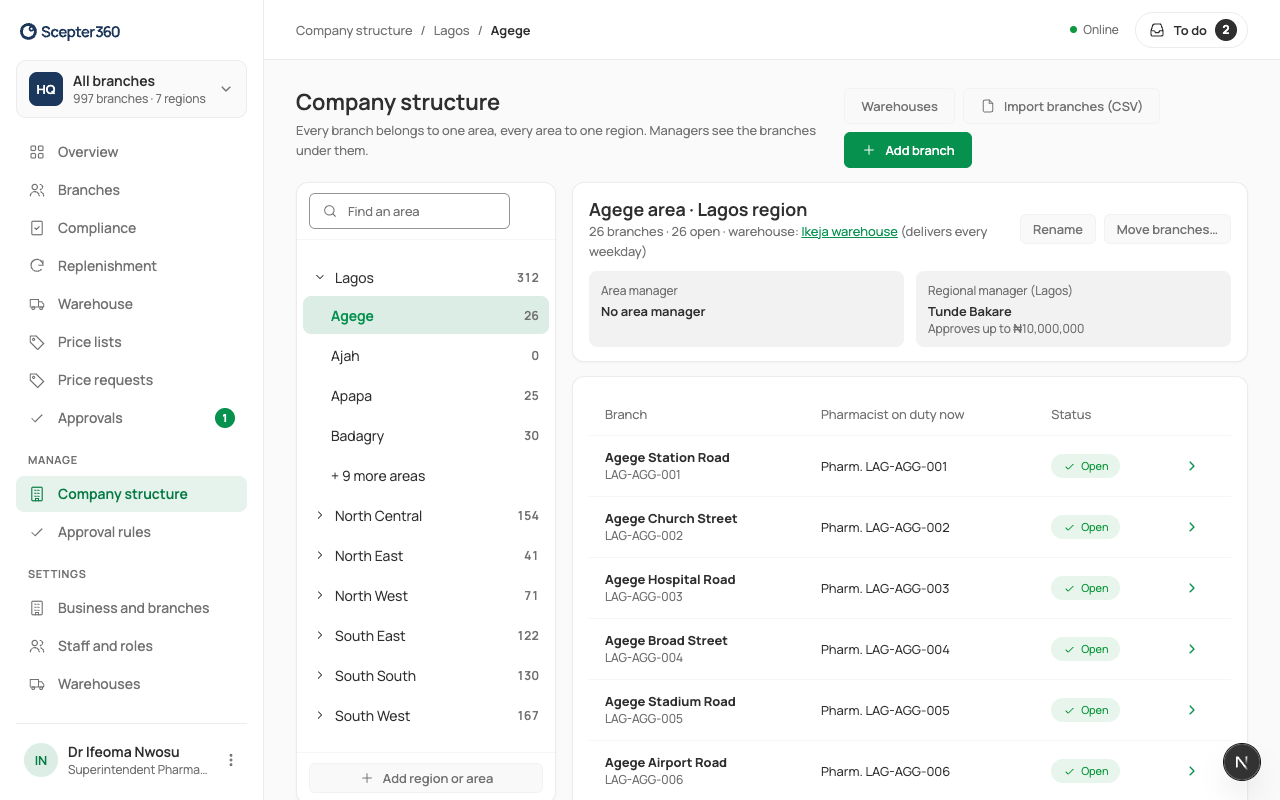
Branches Not in an area wait at the top of the list: Place them….
Add a region or an area
Choose Add region or area, pick the Region (or Add a region…), type the Area name, and Add area. Rename keeps the old name in past reports.
Add a branch
Choose Add branch: Branch name, Area, Branch code (suggested), Town, Opens on, Address, Branch phone, the Premises licence (PCN) and its expiry. It starts as "Not open yet": staff, tills and opening stock come next, as for any branch. Import branches (CSV) adds many at once.
Give an area its manager
Choose the Area manager (or Regional manager) box. Under Add someone, pick the Person (they need an account already), the Role here, and when it Starts.
- One area manager per area. Someone else can cover for a set time (holiday, handover): requests go to both and the first answer decides. Cover always has an end date.
- Choosing Area manager instead of cover replaces the current one from the start date. Use cover when they're coming back; replace them when they're leaving the area.
- End… ends someone's role, with the last day and why.
An area or regional role lets someone see every branch below it. To sell, receive or approve as a pharmacist at a branch, they also need a role there (Staff).
Move branches
In the area, choose Move branches…, tick the branches, choose where they Move to, From which day, and Why, then Move … branches. Before you confirm, the screen says what changes, usually the area manager; requests already waiting with the old one stay with them until answered. Each branch keeps its history; past sales stay under the old area.
Close an empty area
An area with no branches shows Close … area. It leaves every list and stays in past reports. Nothing is deleted.
If something goes wrong
- "An area with branches can’t be closed until they’re moved."
- "There’s already a region called …" / "This region already has an area called …"
- "This person doesn’t have an account here." Invite them in Staff first.