
Appearance
Open your shift
In short
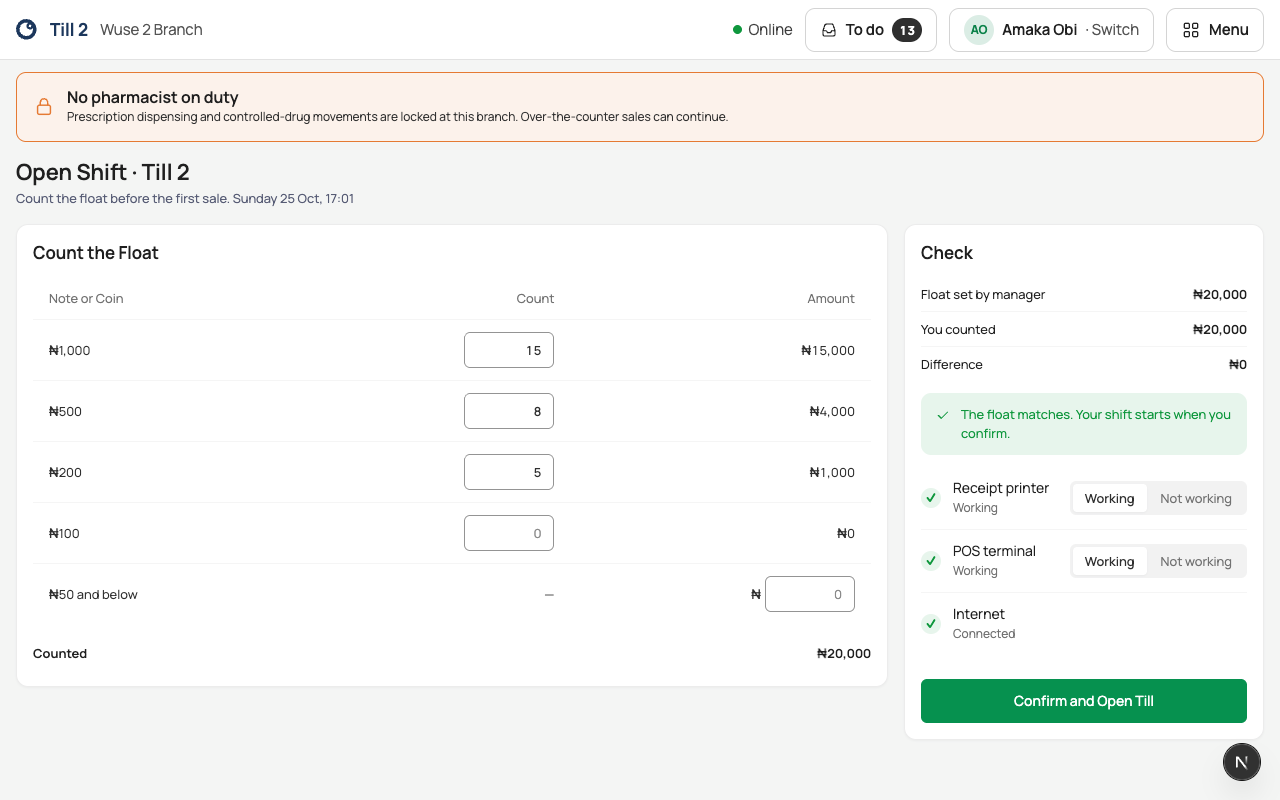
Before the first sale, count the float in the drawer: open Point of Sale, choose Open Shift, enter how many of each note you have, and choose Confirm and Open Till.
Who: anyone who sells (cashiers, pharmacists, technicians), on a registered till. Opening a shift needs internet.
Open the till
- Open Point of Sale. It says No shift is open on this till.
- Choose Open Shift.
- Under Count the Float, type how many ₦1,000, ₦500, ₦200 and ₦100 notes are in the drawer, and the total of ₦50 and below as an amount.
- Look at Check: it compares your count with the float your manager set.
- If they match: "The float matches. Your shift starts when you confirm."
- If not, recount once, then say why under Why is the float different? The reason is kept with the shift; tell your manager too, because a short float makes your own shift look short at closing.
- Mark the Receipt printer and POS terminal as Working or Not working. A Not working is noted with the shift, so the problem is on record from the start.
- Choose Confirm and Open Till.
You see "Till 2 is open", and the sale screen.
The top of the sale screen shows the shift, for example "Till 2 · shift opened 08:00 by Amaka · float ₦20,000".
If something goes wrong
- "Say why the float is different before opening." Type a reason, for example "₦500 note missing, told Ngozi".
- "Enter the coins and small notes as an amount, like 200."
- "You’re offline. Opening a shift needs a connection for now." Wait for the internet.
- "… already has an open shift, opened by …" Someone's shift is still open on this till. If they've gone, take over the till.
- "This device isn’t a registered till here." Ask your manager to register it.
- "This branch isn’t live yet." Selling starts when Arrowhead activates the branch.