
Appearance
Take payment and give a receipt
In short
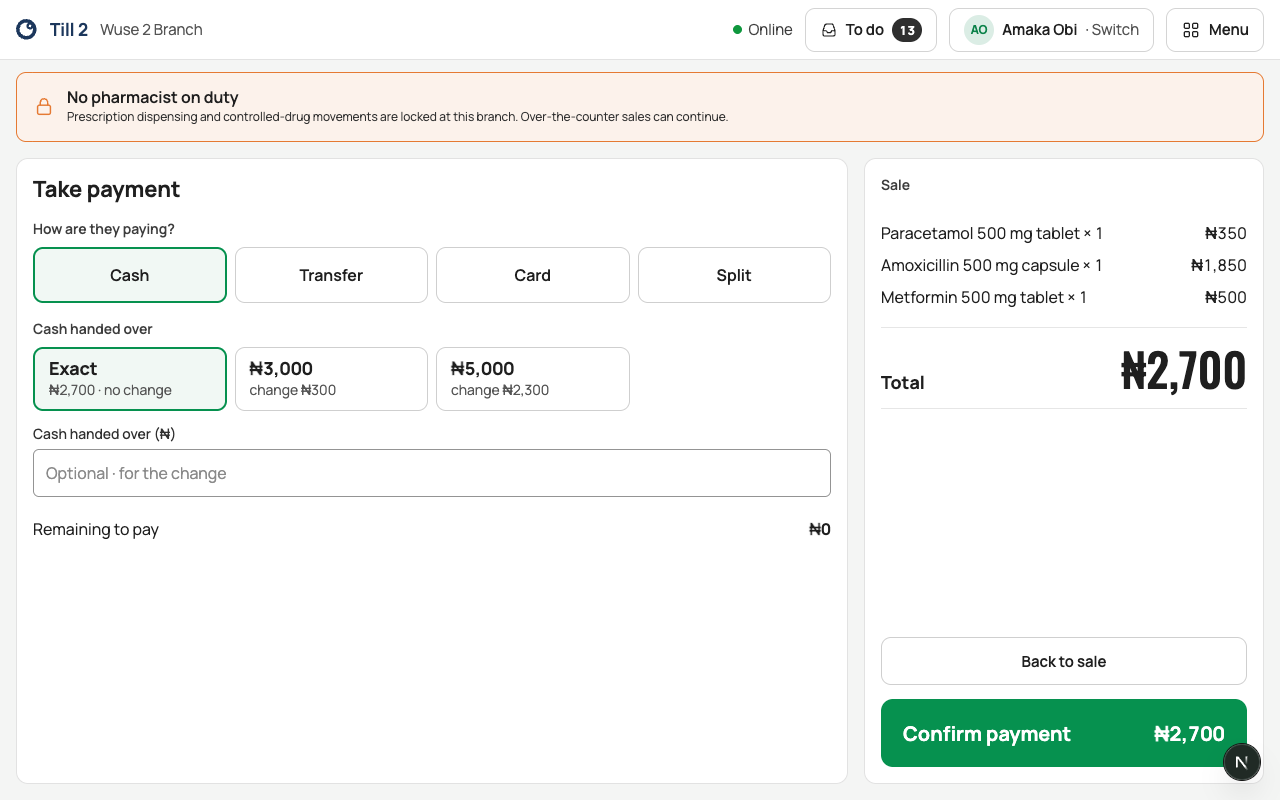
Choose how they're paying (cash, transfer, card, or a mix), enter what the screen asks for, and choose Confirm payment. Then print the receipt or send it by SMS.
Who: anyone who sells.
Take payment
- In the sale, choose Take payment (or press F8).
- Choose the method:
- Cash: tap Exact if they gave the exact amount (this finishes the sale at once), or tap the note they gave you (the screen shows the change), or type Cash handed over (₦).
- Card: type the Slip number from the terminal.
- Transfer: type the Transfer reference, and tick I’ve seen it arrive in the bank app once you've checked. A customer's "sent" screen isn't proof; the money in the bank app is.
- Split: part cash, part card, and so on (up to 5). Choose Add another method for each.
- Check Change to give.
- Choose Confirm payment.
The slip number and transfer reference let anyone trace a payment later, for example when the card and transfer totals are counted at close of shift.
The receipt
You see Payment Received and the change to give.
- Print Receipt prints it.
- Send by SMS sends it to a phone number. Any number works for a walk-in customer; it's used for this receipt only.
- New Sale starts the next customer.
The receipt says "Keep this receipt for returns": the receipt number finds the sale for a refund.
If something goes wrong
- "₦… still to pay." The amounts don't cover the total yet.
- "The cash handed over is less than the cash due."
- "Check the transfer has arrived in the bank app, then tick it." Never tick before you've seen the money arrive.
- "Not enough … in stock." Someone sold the last one meanwhile. Take it off the sale.
- "The price of … is now ₦…. Check the sale with the customer." The price changed since you started the sale.
- "A controlled drug is in this sale. …" Controlled drugs go through the Prescriptions queue.