
Appearance
Add or find a patient
In short
Patients lists everyone at your branch. Add Patient registers someone new: name, phone, date of birth, sex, allergies, and what they agree to.
Who: everyone can look; registering needs internet.
Find a patient
Open Patients and search by name, phone or patient ID. Tabs show With Balance (they owe part of a prescription) and Repeat Due. Open a patient to see their details and prescriptions (This Branch or All Branches), and start a New Prescription.
Phone numbers are always partly hidden, and opening a record is logged.
Register a patient
- In Patients, choose Add Patient.
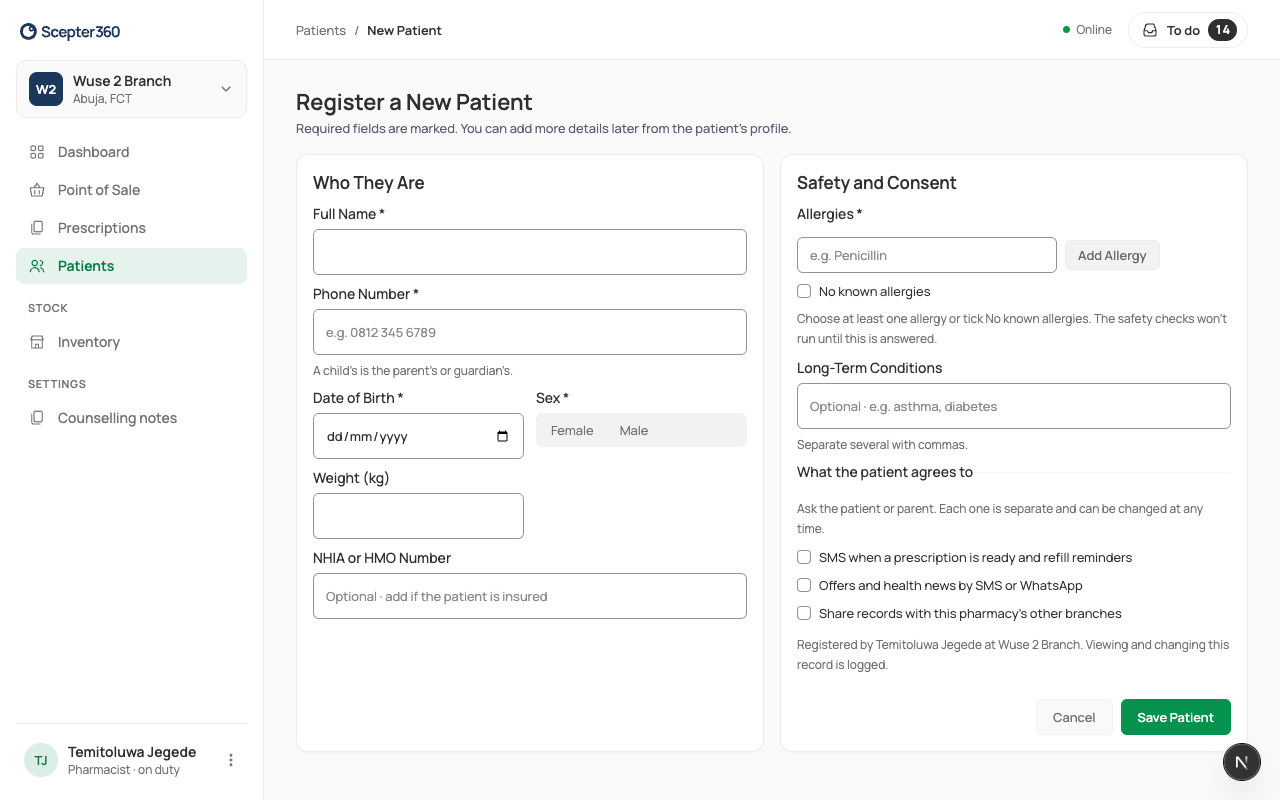
- Who They Are: Full Name, Phone Number, Date of Birth, Sex. For a child under 12, Weight (kg) too. Add the NHIA or HMO Number if they have one.
- Safety and Consent: add each allergy (Add Allergy), or tick No known allergies. Ask; don't assume: every prescription is checked against these allergies. Add long-term conditions.
- What the patient agrees to: ask about each one separately, and tick only what they say yes to. Someone may want a ready SMS but no offers:
- SMS when a prescription is ready, and refill reminders
- Offers and health news by SMS or WhatsApp
- Sharing their records with your other branches
- Choose Save Patient (or Save and Continue to Prescription).
Family members can share a phone: Scepter360 asks if it's a new person.
If something goes wrong
- "Enter the full number, like 0812 345 6789."
- "Age … : weight is required so doses can be checked per kg."
- "Add at least one allergy, or tick No known allergies."
- "You’re offline. Registering a patient needs a connection."
- Only a pharmacist can remove an allergy once it's recorded.