
Appearance
Sign in
In short
Type your email (or phone number) and password, choose Sign In, and pick the branch you're at today. On a till, after that, you just tap your name and type your PIN.
Who: everyone.
Sign in with your password
- Open Scepter360. You see Sign in.
- Type your Email or phone number and your Password.
- On your own phone or computer, tick Keep me signed in if you don't want to sign in every day. Leave it unticked on a shared device.
- Choose Sign In.
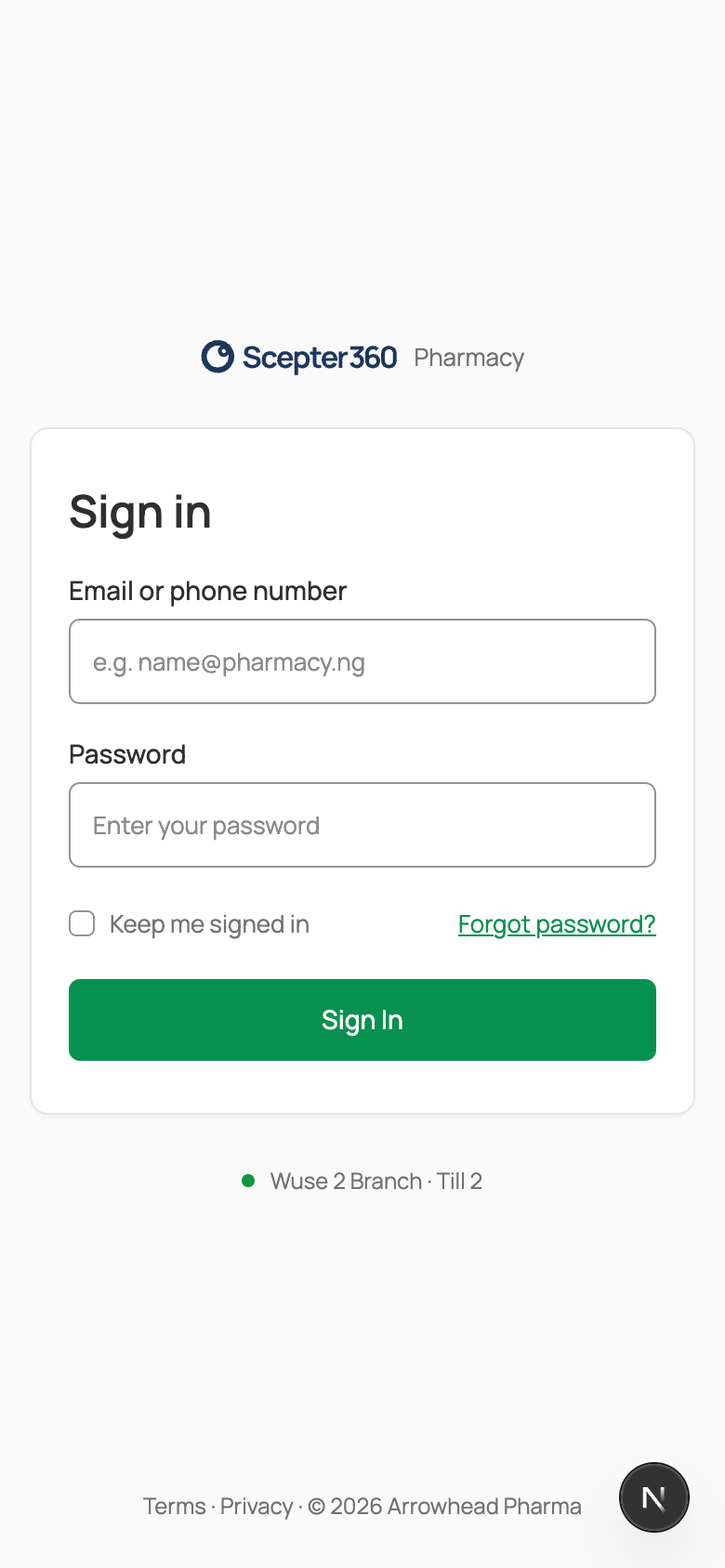
On a till, the line under the form shows which branch and till it is, for example "Wuse 2 Branch · Till 2".
Choose your branch
If you work at more than one branch, Scepter360 asks Where are you today?
- Tap the branch you're at. Each one shows whether a pharmacist is on duty there.
- Choose Continue to your branch.
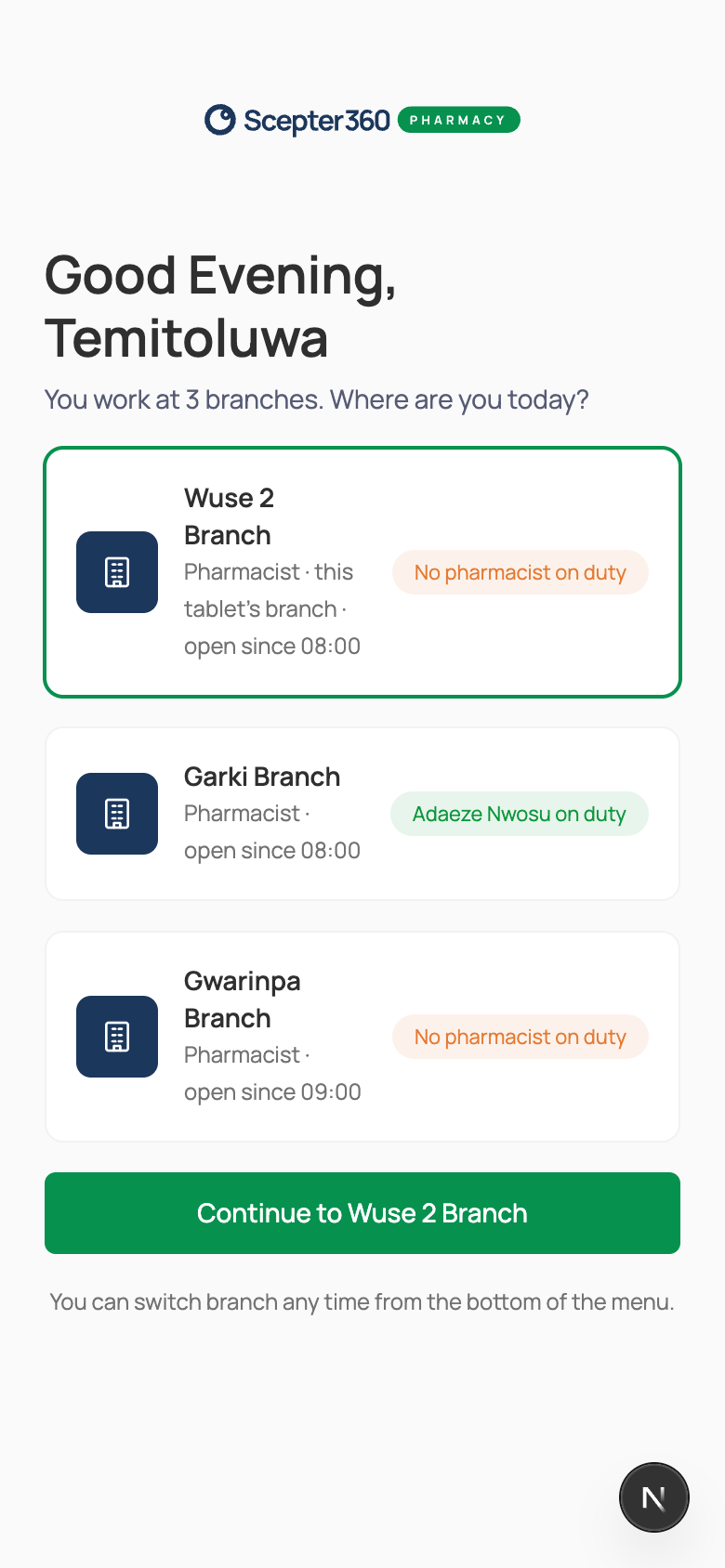
You can change branch later from the branch name at the top of the menu.
On a till: your PIN
After someone has signed in on a till, it locks when nobody uses it. From then on you don't type your password: you tap your name and enter your 4-digit PIN. See Unlock a till with your PIN.
Sign out
Open the menu (on a till, Menu at the top right) and choose Log out.
Pharmacists
Logging out also takes you off duty. If you're the pharmacist on duty and you're only stepping away, use Switch instead, so dispensing doesn't stop.
If something goes wrong
- "That email or password is not right." Check for typing mistakes. Your email is the one your manager added you with.
- "You’re offline. Staff who signed in on this tablet in the last 7 days can still sign in with their PIN." There's no internet. On a till, choose Sign In Offline with Your PIN. See Sell without internet.
- "You haven’t been added to a branch yet." Ask your owner (the superintendent pharmacist) to add you to a branch, then sign in again.
- More: Can’t get in?