
Appearance
Approve requests
In short
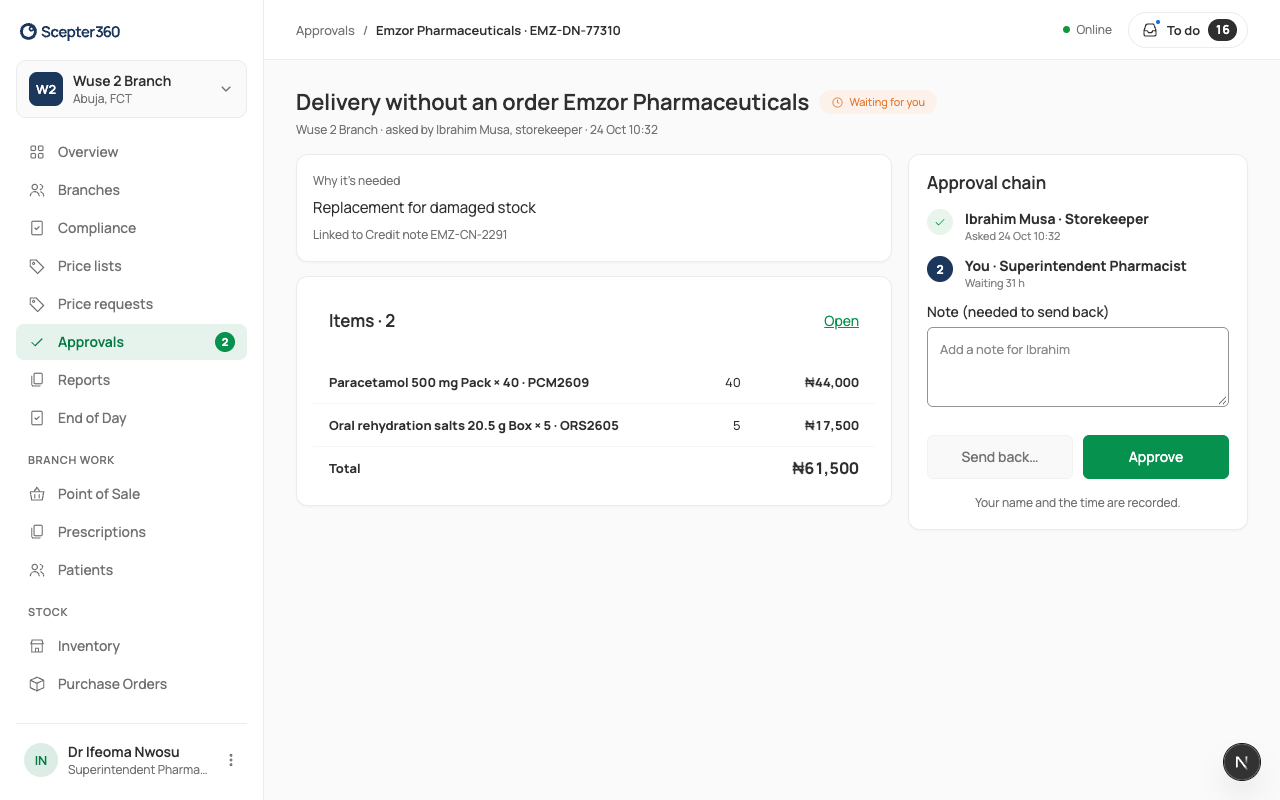
When someone goes over their limit (an order, a stock adjustment, a count difference), it comes to Approvals and your To do. Open it, read why it's needed, and choose Approve or Send back with a note.
Who: owners, branch managers and buyers, each within their own limit.
What comes to you
Purchase orders, deliveries without an order, stock adjustments, expired stock write-offs, count differences, stock destruction, and price changes.
Approve or send back
- Open Approvals. Waiting for you lists your requests; choose Review.
- Read Why it’s needed and the Items: does the reason explain the amount? Open the order shows the whole thing.
- Check the Approval chain: who asked, who has approved, and anyone after you.
- Choose Approve, or type a Note and choose Send back…, pick a reason and Send Back. Send back when something should change, such as a quantity or the supplier: it goes back with your reason, and they can change it and send it again.
You see Approved ("PO-2026-2296 is approved. Temi has been told."), or Approved and Sent On when it needs one more approval above you. Next Request opens the next one.
Your name and the time are recorded.
Your two-step code
If you signed in to a till with your PIN, your first approval asks Enter Your Code: type the 6-digit code from your authenticator app. You won't be asked again until you sign out.
If something goes wrong
- "Waiting for … You can look, but this one isn’t yours to decide." It's someone else's turn.
- "That code didn’t work. … attempts left." Wait for the next code in the app and try again.
- "Too many wrong codes. Try again in 15 minutes."