
Appearance
Recalls
In short
When NAFDAC or a supplier recalls a batch, start a recall: Scepter360 blocks its sale at every branch, finds the stock and the patients who got it, and tracks each pack and call until it's closed.
Who: the owner and branch managers start and close recalls.
Start a recall
- In Inventory, choose Recalls, then New recall.
- Fill in Received from, Notice reference, Notice date, the Product, the Batch numbers, the Reason and the Level.
- Check Found So Far: how much stock and how many patients the batches reach, so you know the size of the job.
- Notify patients who received these batches is ticked to start with: each patient gets an SMS saying what to do, then a call if they don't reply.
- Choose Start Recall.
Sale of those batches stops at once at every branch, and everyone gets a to-do to check their shelves.
Work through it
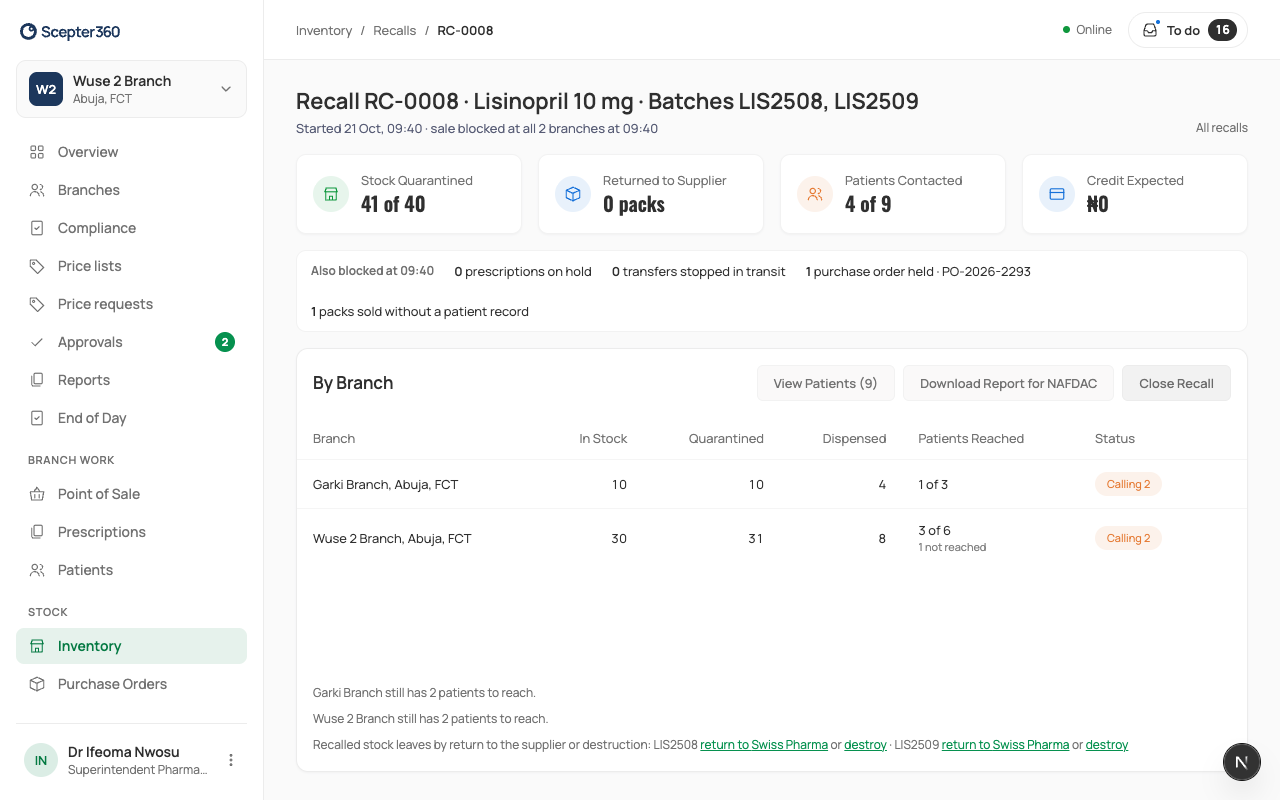
The recall shows Stock Quarantined, Returned to Supplier, Patients Contacted and Credit Expected.
- View Patients: for each patient, Show number, call, and Log Call (Reached, No answer, Wrong number). When they bring the pack back, choose Pack Returned.
- Return the stock to the supplier, or destroy it, from the links next to each batch.
- Download Report for NAFDAC when you need it.
Close it
Close Recall works once every pack and every patient is accounted for. If a branch has packs missing, recount there first; if they still can't be found, choose Explain and say where they went.