
Appearance
Products and prices
In short
Inventory lists every product with its price and stock here. Open one to see its batches; Edit Product changes its details, packs and prices; Add Product adds a new one.
Who: pharmacists, branch managers and the owner add and change products. Setting a price above the guide needs a manager or the owner.
Find a product
Open Inventory and search (or scan). Each row shows how it's Counted In, its Schedule, Price, what's Available Here, and its status (In stock, Reorder, Out of stock).
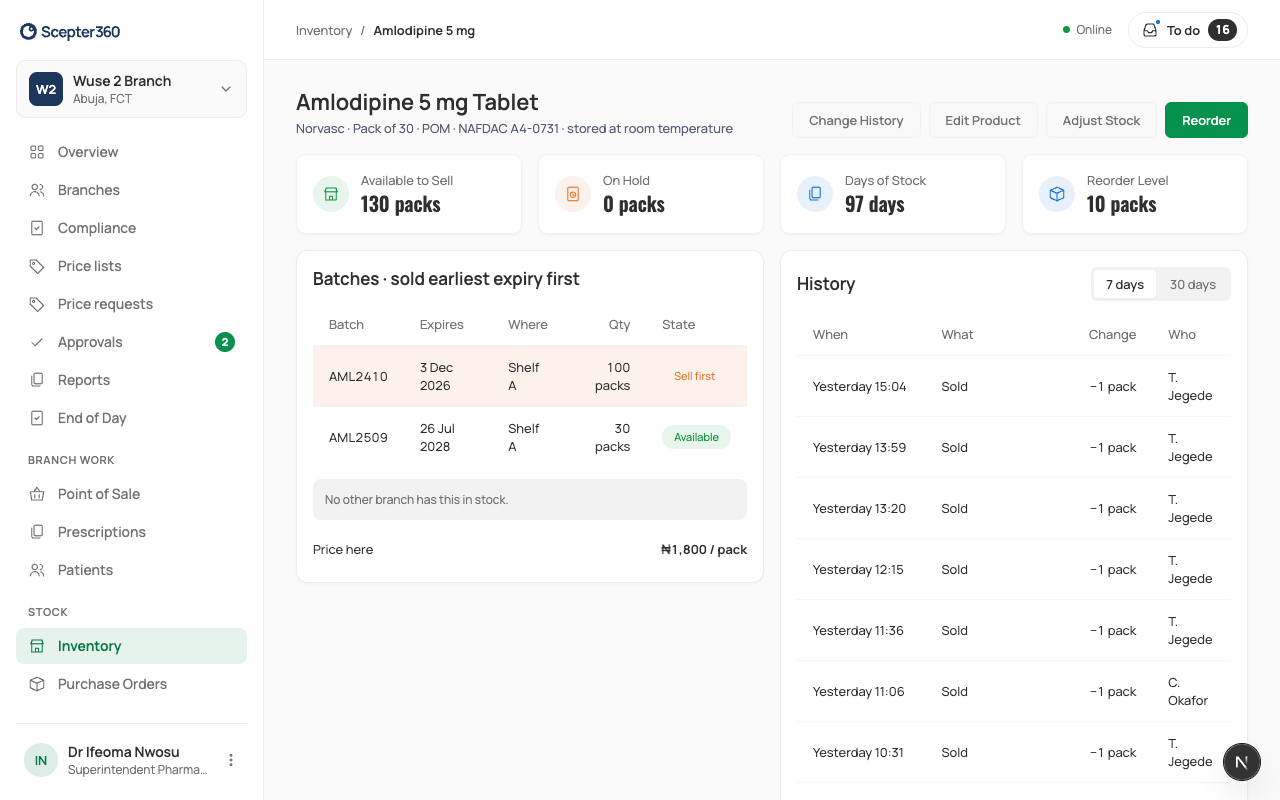
Open a product to see Available to Sell, On Hold (including quarantined stock), Days of Stock (how long what's available lasts at the last 30 days' sales), its batches (sold earliest expiry first) and the Price here.
Add a product
- In Inventory, choose Add Product.
- Details: choose the department. For medicines: generic name, brand, strength, form, route, NAFDAC number, schedule, storage and tax. For other things: the product name and tax.
- Packs and Stock: each level you buy or sell (for example Tablet, Strip, Pack), how many it holds, its barcode, and whether you Buy and Sell it. Set the Price for each level you sell. Choose whether Prices apply to every branch or this one only.
- Set Count stock in and the Reorder level.
- Check the Checks panel, then choose Save Product.
Change a price
- Open the product and choose Edit Product, then Packs and Stock.
- Type the new Price, and the Reason for the price change.
- Choose Save Product.
A price above the business's guide needs a manager or the owner. If you can't set it, the check says so.
Products added at the counter
A cashier can add an everyday item with an unknown barcode. It shows Details to finish, and you get a to-do: open it, fill in the details, and save.
If something goes wrong
- "Use the form A4-1234." The NAFDAC number's format.
- "The barcode is already on …" Choose Open that product: it may be the same thing.
- "Two levels have the same barcode." / "Sell at least one level."
- "Say why the price is changing."