
Appearance
Order from a supplier
In short
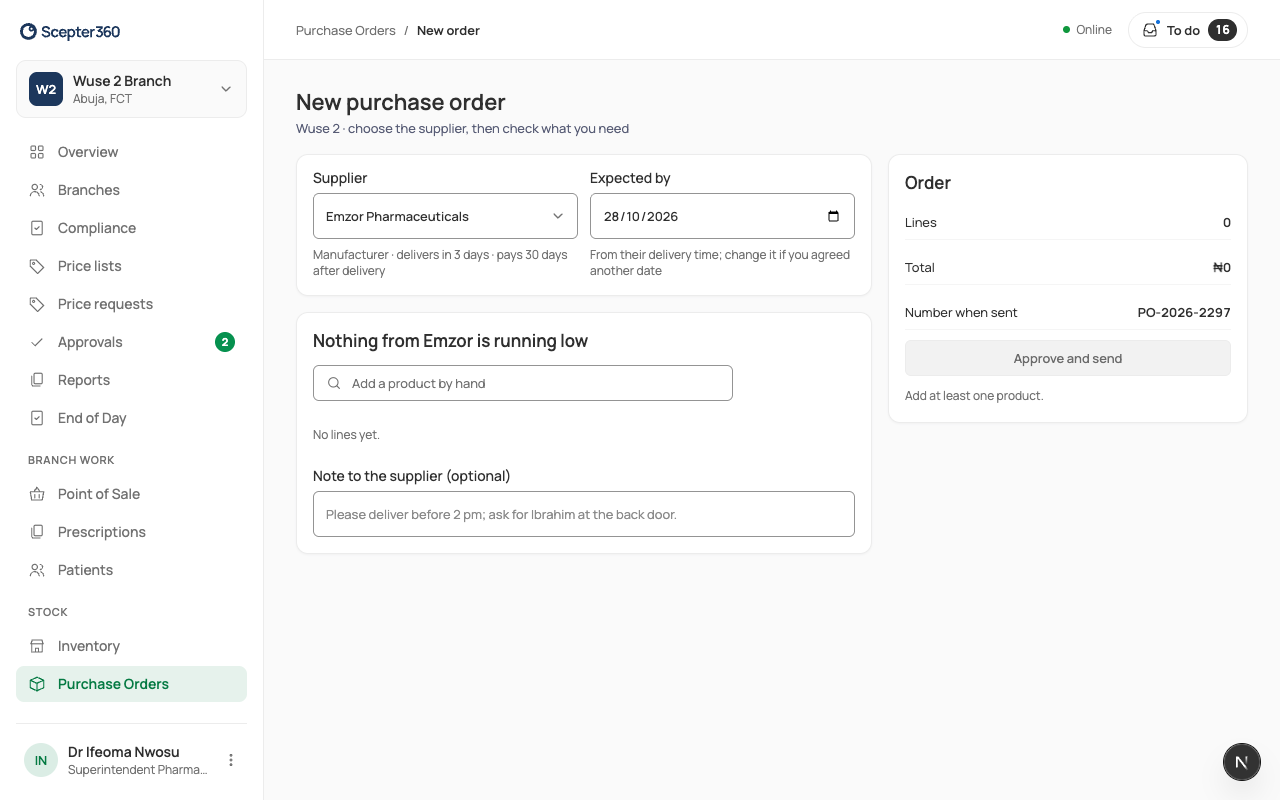
New Order: choose the supplier, check the lines (Scepter360 adds what's running low), and send it by WhatsApp or email. Over your limit, it goes for approval first and is sent once approved.
Who: branch managers and buyers (up to ₦500,000 on their own), and the owner (no limit).
Raise an order
- Open Purchase Orders and choose New Order.
- Choose the Supplier and when you expect it (Expected by).
- Lines running low from that supplier are added for you: enough for 30 days after delivery, from your last 30 days of sales, in whole cases. Change any quantity, add more by searching, and set the prices.
- Check the order card: lines, Total, and the limit line, for example "Within your ₦500,000 limit. No approval needed."
- Choose Send by WhatsApp or Email.
- Choose Approve and send, or, over your limit, type Why it’s needed and choose Send for approval.
Not ready? Save as draft.
Reorder Suggestions shows everything below its reorder level; tick what you need and compare suppliers (it picks the cheapest that can deliver in time) to raise several orders at once.
After it's sent
On the order: Send Reminder or Chase Supplier, Record Supplier’s Reply (a new date, or lines they're short), Receive Delivery when it arrives, Print Order, or Cancel Order (the supplier isn't told automatically).
If something goes wrong
- "… can’t take orders: their licence has expired or they’re blocked." See Suppliers.
- "Set a price for …" A line has no price.
- "Add …’s WhatsApp number first, or send it the other way."